iOS update brought new features, but it also packed with annoying bugs, such as iPhone Charging issues after the iOS software update, or if the phone or tablet is charging but with slow wireless charging.
Many users have noticed battery issues after updating to the latest iOS on various iPhone and iPad models. What is the real fix that came out for iPhone won’t charge, or is unable to start charging (the iPhone not charging but turns on when plugged in). Charging does not start after plugging the USB Lightning cable. It’s not a hardware-related issue, but rather a software issue that we can resolve through some software repair or reset tricks.
Keep this guide with you while you install iOS on iPhone and iPad OS on iPad, So don’t miss sharing it with your friends.
[Read This → My iPhone Won’t turn on After Charging for a long time.]
Steps for Fix iPhone won’t charge or Charging Slowly after the iOS update & iPad Update
Solution #1: Use Apple’s Official Charger & Others
Don’t use a third-party charging cable or Brick to charge your iPhone or iPad. Know the Handy iOS 18 Battery Improvement tips.
- Hard Reboot the Device Once. (Explained in Solution #2).
- Use Your Wall plug, Don’t Use the Power Strip or USB port of your Mac or PC.
- Remove the iPhone/iPad Cover, and Keep it on Charge Overnight.
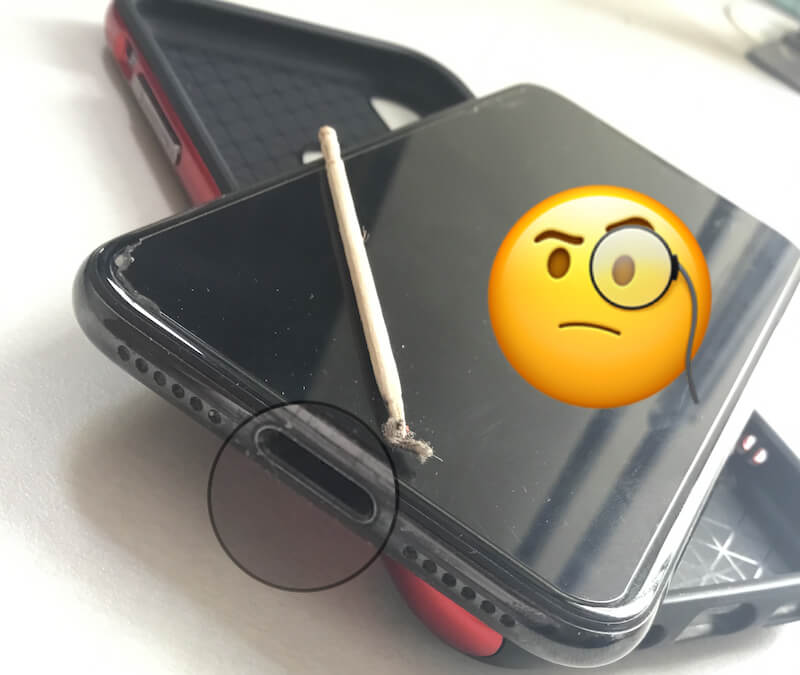
- Try With your Friend’s iPhone or iPad Charging Cable. iPhone X or later model supports Wireless Charging – Best Wireless Charging Pad. Try to Charge it with. Also, clean up the Charging port with Dry Wood Toothpicks and toothbrush.
Still Not Fixed…Then continue to Other Solutions.
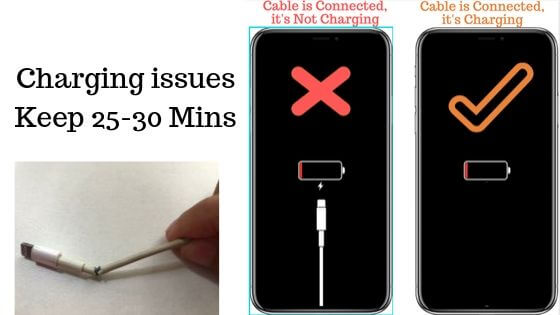
Charge your iPhone in the Right Way after it is completely off. You will see only the Battery while in Charging mode (no cable on screen).
Solution #2: Try After Force restarting the Device
Charging is not showing near the battery on the Status bar, or the device is unable to start charging. Restart or Force Restart is also helpful.
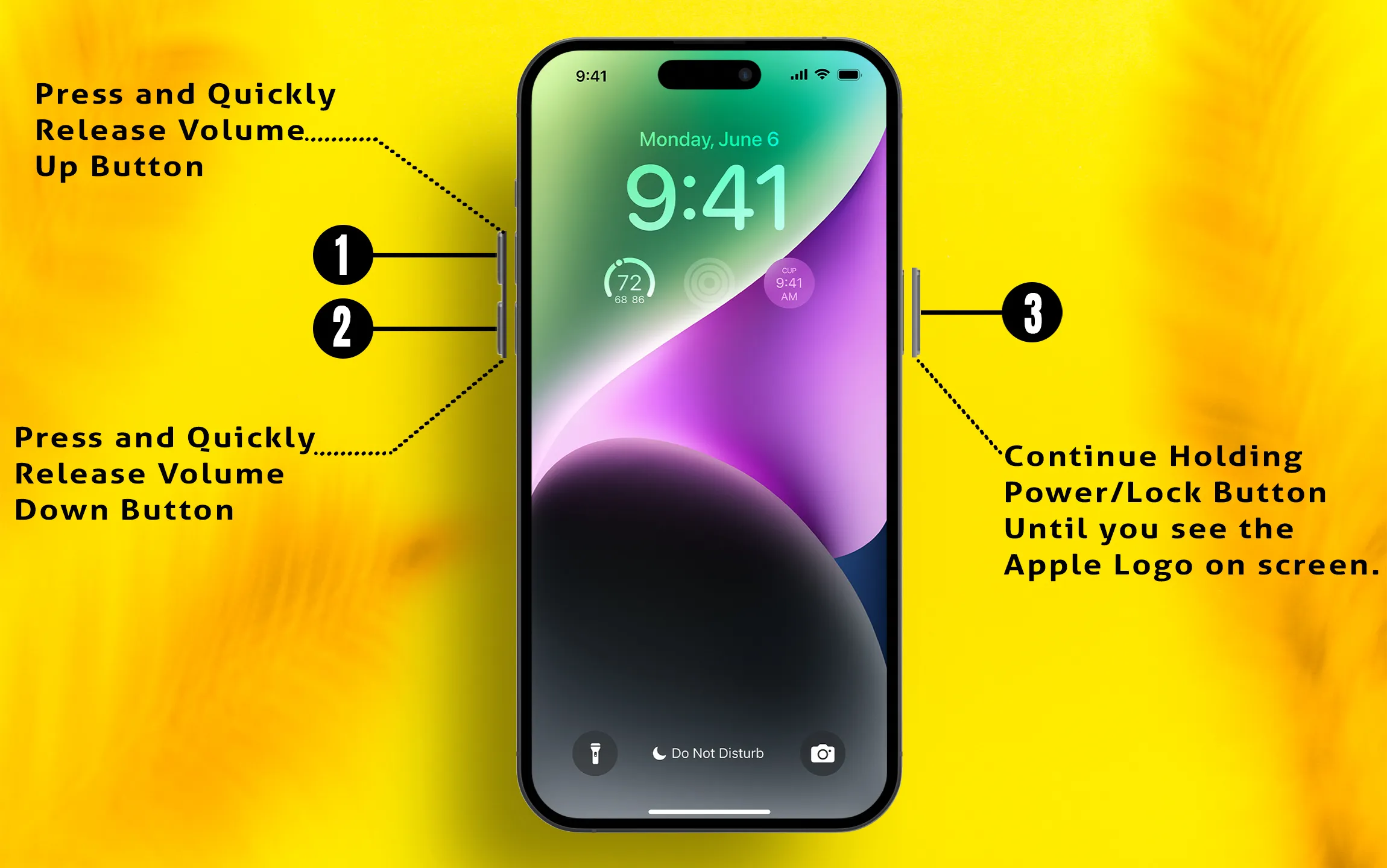
For iPhone 8/ 8 Plus & iPhone X and Later: Quickly Press and Release Volume Up and Volume Down buttons. After that, only press and hold the side power button until you see the black screen and the Apple Logo on the screen.
More… About Force Restart iPhone X or Other No Home button iPhone or iPhone 8.
Home Button iPhone,
Press and hold the Power button + Volume down button until you see the Apple logo on the screen (For iPhone 7 and later models). And Power Button + Home Button for iPhone 6S and earlier.
Helpful: Enable Battery Percentage – Show in Status Bar
Solution #3 iPhone Stop Charging at 80%
This optimization feature helps the iPhone learn from your charging and Usage habits to preserve battery lifespan over time. Turn off the settings below to charge up to 100%.
- Settings > Battery > Charging > Change Charge Limit to 100% > Set limit to 100%.
- Disable the “Optimized Battery Charging” toggle (Turn off).
Solution #4: A factory reset or Clean install/Downgrade
The unstable version of the iOS beta release often creates this issue, which can be resolved by downgrading or removing the public or Developer iOS version.
- Clean Install: Tack Backup of Your iPhone On Mac or PC/ iCloud, Next to Remove all Data and Settings
- Go to the Settings app on iPhone/iPad > General > Transfer or Reset iPhone > Erase All Content and Settings.
- During the Erasing of your device, your iPhone will reboot several times.
- Again, connect your iPhone/iPad to your Mac/PC Computer, where you take and save the latest backup. Use iTunes/Finder or Mac/PC to restore the Latest Backup on iPhone/iPad.
- Once, you did. Check your iPhone/iPad’s battery and fix your problem.
- Still does not Help. Because of an internal Software bug in the latest iOS and iPadOS Versions, I recommend temporarily downgrading and waiting for the next Update. Also, you have to visit Apple support, which is near your location.
- Remove Public Beta Profile: Remove the Beta profile and Wait for the next puck iOS update. Go
to the Settings > General > VPN & Device Management.
Solution #5: Participate in Battery Replacement Programme
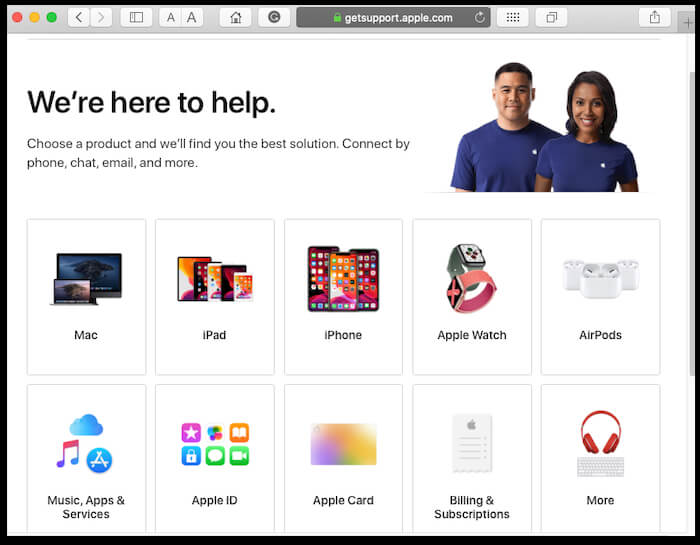
Typically, Apple announces the availability of battery replacements for specific devices or models. According to Hardware, issues usually arise over time. So, keep your eye on Apple’s official announcement. In this case, you can find information on Google, For Example, “iPhone XR Battery Replacement Programme” or Apple Support, both online and offline (near a nearby Apple store). Follow the link here and select your Device and the Problem related to it.
- Also, you need to enter the Serial number of your device that is available on Device Settings [Settings app > General > About > Serial Number], On-Device Body [Backside of the Device], Purchase Receipt [Available On the Box] or on your Purchase device account either Online Apple Store or Third-Party e-commerce website.
Solution #6: Check the Warranty of the Apple Device and get Free Repair or Replacement
For Any Apple Device under Warranty, you can check warranty status online, If your Device is under Warranty, you can get a free replacement or Repair from Apple Official. Out of the Apple Warranty period, you must pay for the repair or Battery cost. Otherwise, you can repair it at a third-party repair service nearby you. Some trusted repair stores nearby you can help to fix at a meager price. Here’s the Best Third-party Repair service.
Solution #7: Uninstall the battery-draining app
Find which app consumes more power comparatively other apps. See the Battery usage for the last 6 hours.
1. Launch the Settings App. and Scroll & tap Battery, then select Last 24 Hours Last 10 Days on iPhone.
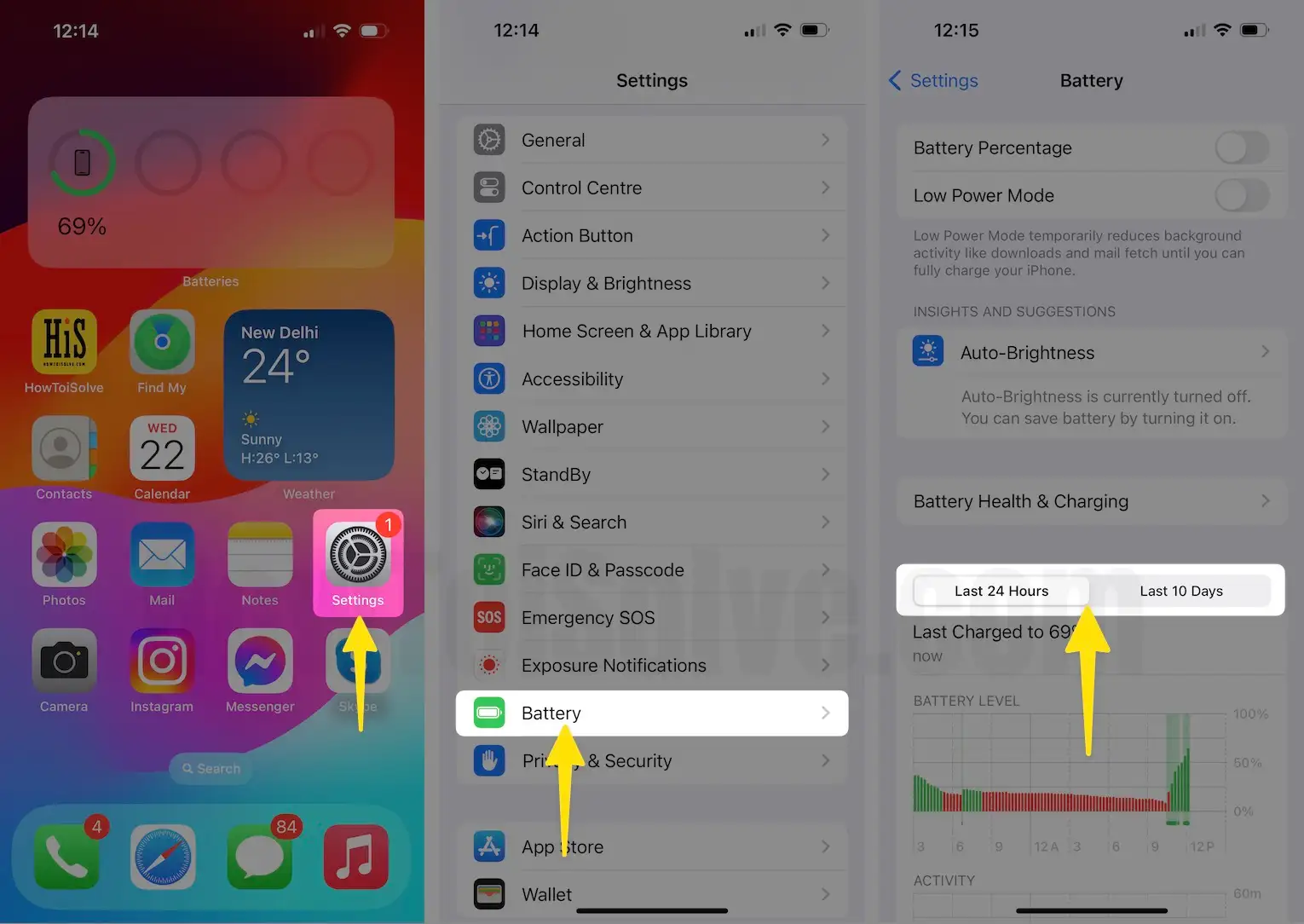
Get detailed information on hours and minutes. Tap on the Clock icon.
Solution #8: Charge Battery Faster
Enable Driver mode or Airplane mode from the control center. These two modes automatically disable all incoming network connections, GPS, Bluetooth, Location Services, Background App Refresh, and other battery-draining processes.
Or Take action manually by disabling WiFi or Other battery-draining activity. Using a 4G or LTE
connection in the cellular plan, will take less time to browse compared to a 2G or 3G connection.
Solution #9: The Alternate suggestion is to turn off
Your iPhone is totally disabled Turn off (Black screen, less than 1% & 0%), then turn off the iPhone or iPad. Connect with a USB charging cable for rapid charging.
A 10% charge will fuel within 6 minutes, instead of 10 minutes.
Solution #10: Contact the Expert and get help
Find iPhone repair services near me and Know where the problem is actually. Sometimes dust inside the lightning connector throws issues or slow charging.
Clean it up yourself or at the service station.
Otherwise, you can also get an appointment at the Apple Genius bar. Know the Available iPhone warranty status and get a brand new iPhone as a replacement before you open the device at the Apple store.
Apple Always knows the real-world hardware and software problems in Apple Devices. Wait for a few days for the upcoming new updates, and use the External Power Bank as an interim solution.
Please don’t force me to charge with the same Cable and power outlets after you inform me that my iPhone won’t charge. Maybe your iOS device is getting more hit or damaged inside the circuit.